
Download Windows Search – Fast Desktop & Network File Finder
Overview
Windows Search, formerly known as Microsoft Windows Desktop Search, is a built‑in indexing and query engine that lets you locate files, emails, calendar items, and even content stored on network‑shared drives with a single keystroke. Designed to bridge the gap between local‑only search utilities and enterprise‑level indexing, the tool integrates seamlessly into the Windows ecosystem, adding searchable boxes to Internet Explorer, Outlook, the taskbar, and even a floating desktop toolbar. While it may not match the lightning speed of third‑party solutions such as Google Desktop, Windows Search offers a reliable, secure, and fully Microsoft‑supported way to retrieve information across both the local machine and remote shares.
The utility automatically creates an index of supported file types, updates it in the background, and respects corporate security policies, making it a practical choice for home users who need occasional network look‑ups and for businesses that demand compliance with Windows authentication. After a quick restart post‑installation, the search boxes appear everywhere, allowing you to type a keyword and instantly see results ranging from Word documents on a mapped drive to a specific meeting invitation in Outlook. Although the search speed on local drives can feel a bit slower than specialized tools, the convenience of having a single, centrally managed search experience across the entire Windows environment is a compelling advantage for many users.
Key Features of Windows Search
- Deep indexing of local hard‑drives, external USB storage, and network‑mapped drives.
- Native integration with Microsoft Office, Outlook, Internet Explorer, and the Windows taskbar.
- Floating desktop search bar that can be positioned anywhere on the screen.
- Support for a wide range of file types, including PDFs, Office documents, plain text, and e‑mail messages.
- Automatic background indexing with configurable schedules to minimize impact on system performance.
- Security‑aware crawling that respects NTFS permissions and corporate group policies.
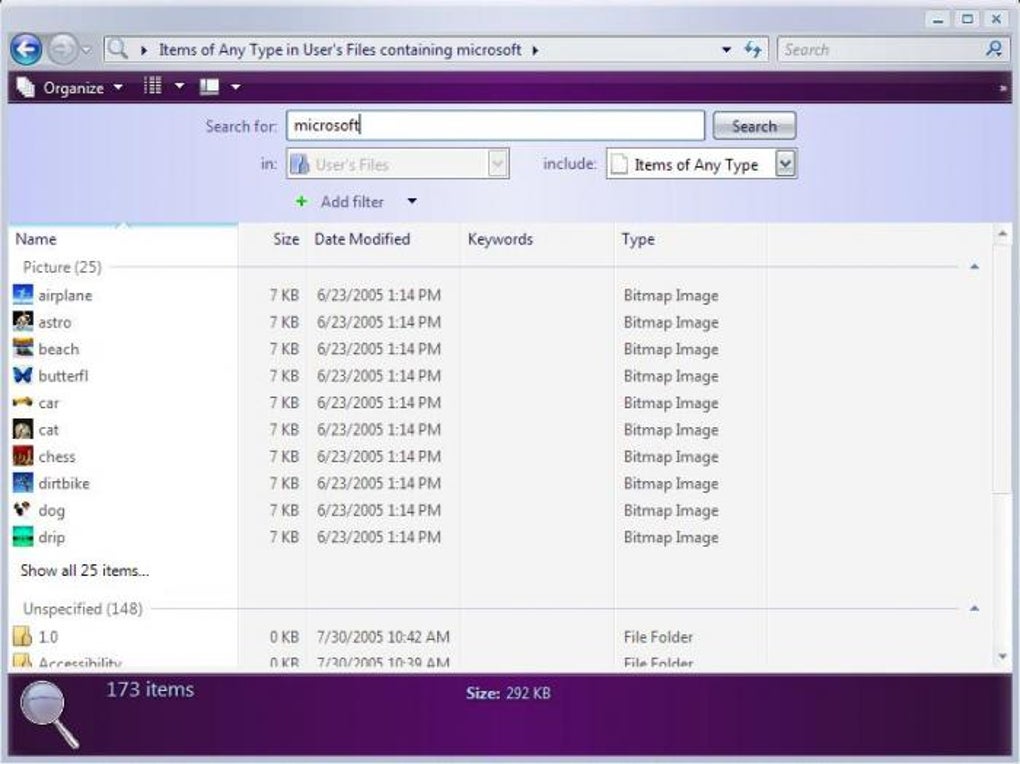
- Customizable search filters (file type, date modified, size, location) for refined results.
- Preview pane for quick content glance without opening the file.
- Search suggestions and spell‑checking to improve query accuracy.
- Enterprise‑ready features such as remote indexing agents for large file servers.
The feature set reflects Microsoft’s goal of turning the entire Windows environment into a searchable knowledge base. By embedding search boxes directly into core applications, Windows Search eliminates the need to open a separate utility before looking for something. The floating toolbar, in particular, is a user‑friendly touch that mimics the “search everywhere” approach seen in modern operating systems.
For power users, the ability to refine searches by metadata (author, keywords, tags) offers a level of precision that rivals dedicated document management tools. Moreover, because the index is built using the same security tokens that protect your files, you can be confident that confidential information will not be exposed to unauthorized users, a crucial consideration for business environments. While some advanced users may miss the ultra‑fast response times of competing tools, the balance between speed, security, and integration makes Windows Search a solid, all‑round solution for most Windows users.
Installation, Usage & Compatibility
How to Install Windows Search
Installing Windows Search is straightforward. The installer is bundled with Windows 7, 8, 8.1, and 10, but can also be downloaded as a standalone package for older versions such as Windows XP and Vista. Follow these steps:
- Download the latest installer from the official Microsoft website.
- Run the
.exefile and accept the license agreement. - Choose the components you wish to install (e.g., integration with Outlook, Internet Explorer, or the floating toolbar).
- Click Install. The wizard will copy files and register the indexing service.
- When prompted, restart your computer to finalize the registration of the search provider.
After reboot, you’ll notice new search boxes appearing in the taskbar, Outlook, and other Microsoft applications. The first indexing run may take several minutes, depending on the size of your drives and the number of network shares.
Using Windows Search Effectively
To start a search, simply click any of the search fields and type your query. Windows Search supports natural language queries; for example, typing “emails from John last week” will return matching Outlook items. You can also use advanced operators:
type:pdf– limits results to PDF files.date:>01/01/2024– shows items modified after a specific date.folder:"C:\Projects"– restricts the search to a particular folder.
The preview pane on the right side of the results window allows you to glance at the content without opening the file, saving time when you’re sifting through many documents. For network drives, you may notice a slight delay as the indexer reaches out over the LAN, but once cached, subsequent searches are rapid.
Supported Operating Systems
Windows Search is compatible with the following Windows versions:
- Windows XP (Service Pack 2 and later)
- Windows Vista
- Windows 7
- Windows 8 / 8.1
- Windows 10 (all editions)
- Windows 11 (via built‑in Windows Search component)
While the core engine works across these versions, some integration points—such as the floating toolbar or Outlook 2016/365 support—require the corresponding Office suite to be installed. The tool runs on both 32‑bit and 64‑bit architectures, automatically detecting the appropriate binaries during installation.
Pros, Cons, FAQ & Final Verdict
Pros & Cons
- Pros
- Deep integration with Windows and Microsoft Office applications.
- Secure indexing that respects file‑level permissions.
- Supports network‑shared drives and remote file servers.
- Free for personal and commercial use.
- Customizable search filters and preview pane.
- Cons
- Initial indexing can be resource‑intensive on older hardware.
- Search speed on local drives may feel slower compared to dedicated tools like Google Desktop.
- Limited support for non‑Microsoft file formats (e.g., some multimedia metadata).
- Requires a system restart after installation.
- Interface feels dated on modern Windows 10/11 builds.
Frequently Asked Questions
Can Windows Search index files on external USB drives?
Yes. When you connect an external USB drive, Windows Search will automatically include supported file types in its index, provided the drive is formatted with a Windows‑compatible file system (NTFS, FAT32, exFAT).
Is there a way to exclude certain folders from being indexed?
Absolutely. Open the Indexing Options control panel, click “Modify,” and uncheck any folders you don’t want indexed. You can also add file types to the “Exclude” list under Advanced Settings.
Does Windows Search work with Outlook 365 webmail?
The desktop client of Outlook 365 is fully supported, allowing you to search e‑mail, contacts, and calendar items. The web version relies on Microsoft’s own cloud search, so Windows Search does not index web‑based mail directly.
How often does the index update?
By default, Windows Search updates the index in real‑time for files that are changed, created, or deleted. You can also schedule a full re‑index through the Indexing Options if you suspect the database is out‑of‑date.
Is Windows Search safe to use in a corporate environment?
Yes. Because the indexing service runs under the same user credentials, it respects NTFS permissions and Group Policy settings, ensuring that confidential files remain inaccessible to unauthorized users.
Conclusion & Call to Action
Windows Search delivers a solid, Microsoft‑backed solution for users who need to locate documents, e‑mails, and calendar entries across both local storage and network drives. While it may not outpace niche third‑party tools in raw speed, its deep integration, security awareness, and zero‑cost licensing make it an attractive choice for both home users and enterprises. If you’re already entrenched in the Windows ecosystem and value a single, centrally managed search experience, Windows Search is definitely worth a try. Download the latest version today, let the index build, and enjoy a more organized, searchable Windows environment.
Windows Search provides reliable indexing across local and network locations, integrates natively with Office apps, and respects security policies, making it a dependable choice for Windows users despite slightly slower local search performance.







